
Whilst this is common with D365 Implementations, its still a really useful addition to any Dataverse solution, where many documents may need to be stored per record.
So we need to have a dataverse environment created and ideally with some tables you want to link documents to.
Then hop over to Sharepoint. [Note this is walkthrough will be based on sharepoint on line, but this is possible for Sharepoint 2013, 2016 and 2019, but they need a couple of extra steps, which i will try and add afterwards.]
Create a standard team Sharepoint site

Then open the Power Platform Admin Centre and pick the environment you want to link to this Sharepoint site. Click on settings to get the screen below.

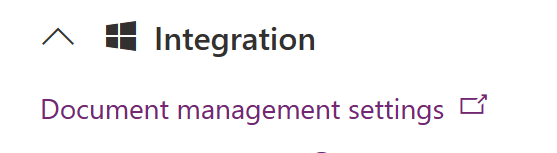
Within Integration chose Document Management Settings
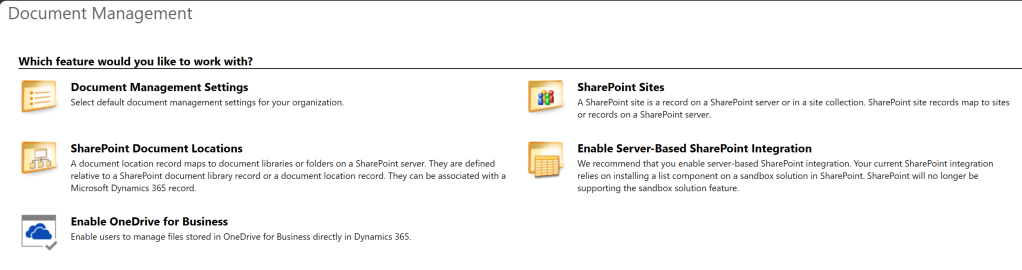
Which will give you these options.

If this is the first time this environment has been connected to Sharepoint , chose Enable Server based Sharepoint Integration. Do not worry about references to D365.

For this walkthrough we will choose Sharepoint Online

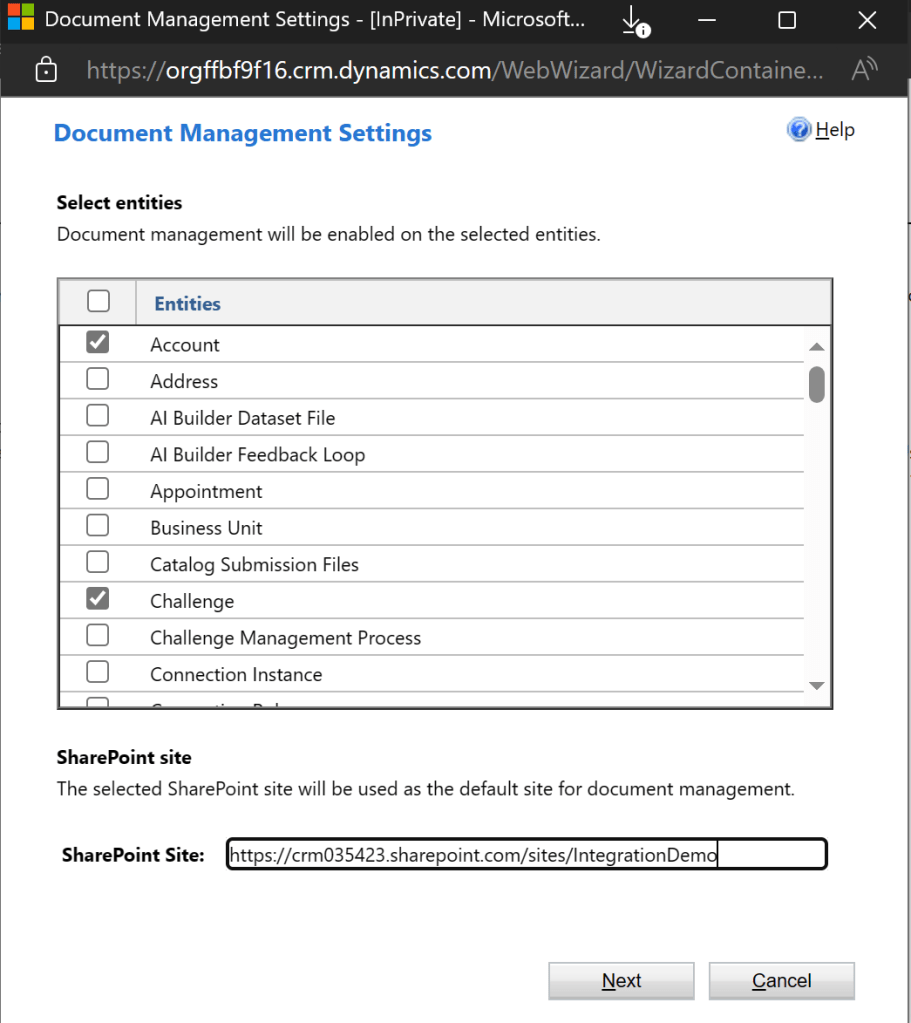
next you will need your Sharepoint site URL, which will look something like this https://crm035423.sharepoint.com/sites/IntegrationDemo/SitePages/CollabHome.aspx?market=en-US. copy the URL for everything to the left of Sitepages so it looks like this https://crm035423.sharepoint.com/sites/IntegrationDemo and add to this window

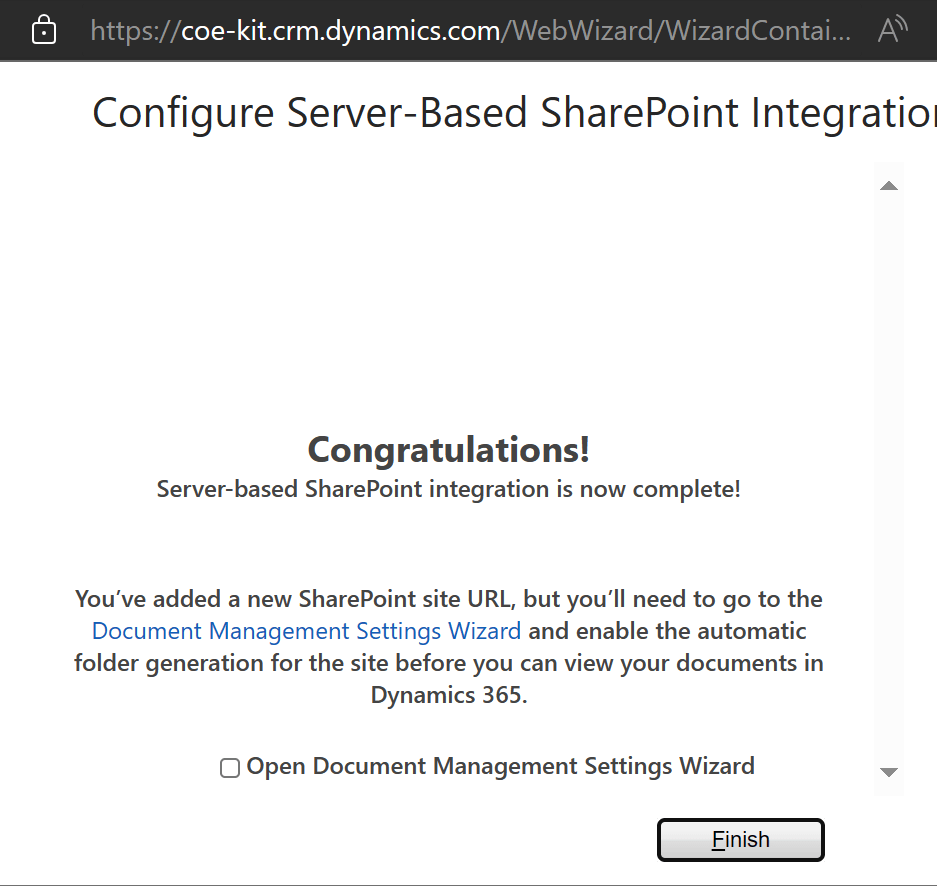
Great your Environment and Sharepoint Site see each other
Lets now choose which tables we want to have attachments in this Sharepoint library. So Click on Document Management Settings this time.
In this screen we choose the tables we want to have attachments
If you want the Sharepoint folder structure created under a specific entity, you can complete the following screen.
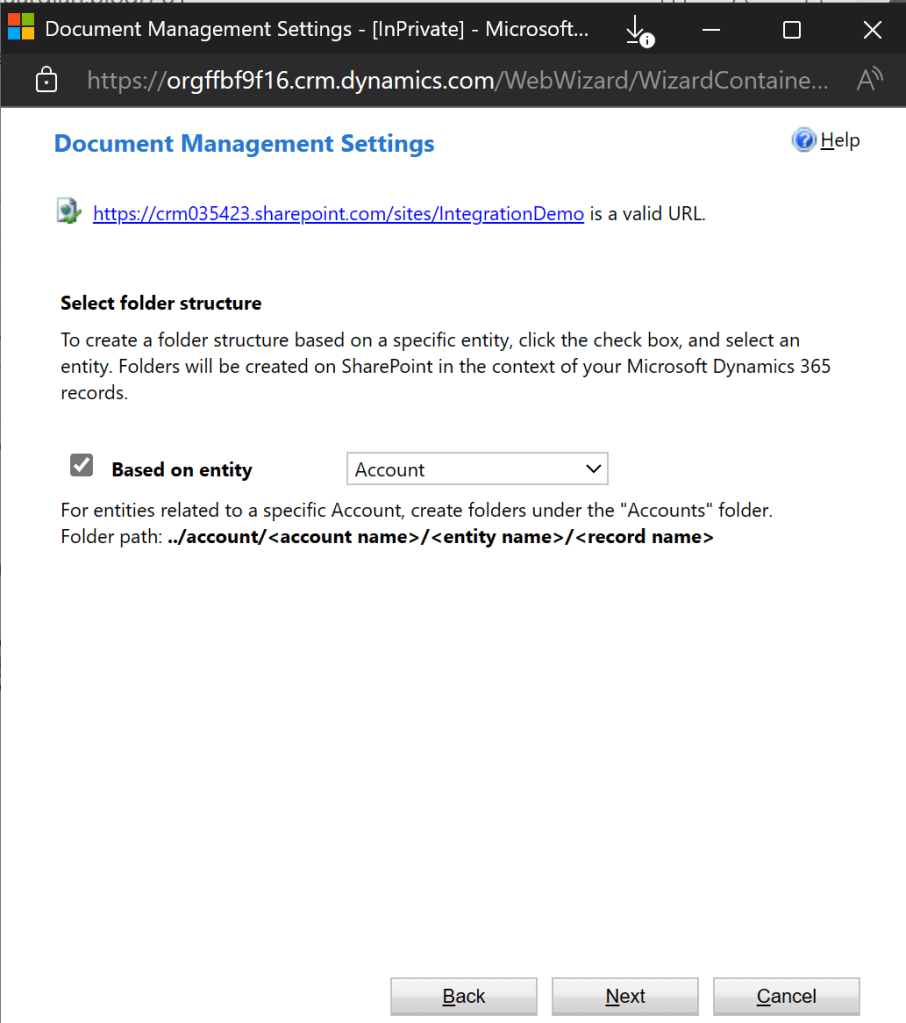
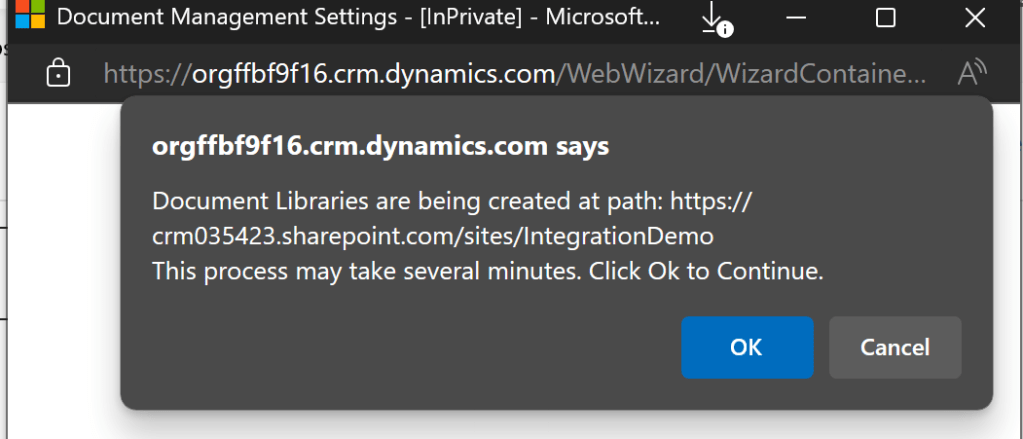
You should then get the message that the Sharepoint Library or libraries are being created. this does take a while. Remember to Click OK if you get this message below.
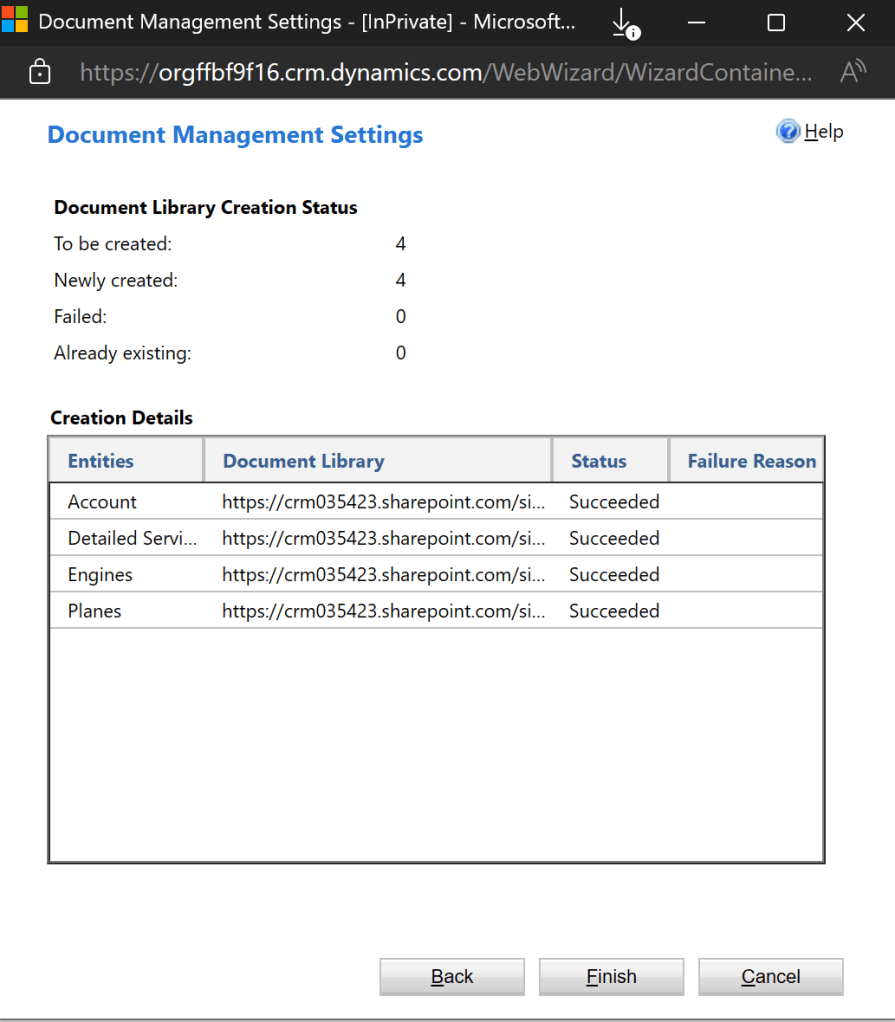
once the library/libraries are created you should get this screen.
Now in SharePoint under site content I can now see the new libraries.

To view you document library in Power platform, create a Model Driven app based on your Table/s. Click on a record in the table and then click on the Related Tab list to see the menu below and choose Documents. (I appreciate those of you are D365 are all shouting at the screen there are other ways… but for first time model driven app users this is an easy way to understand.)

This will show you where documents will be stored
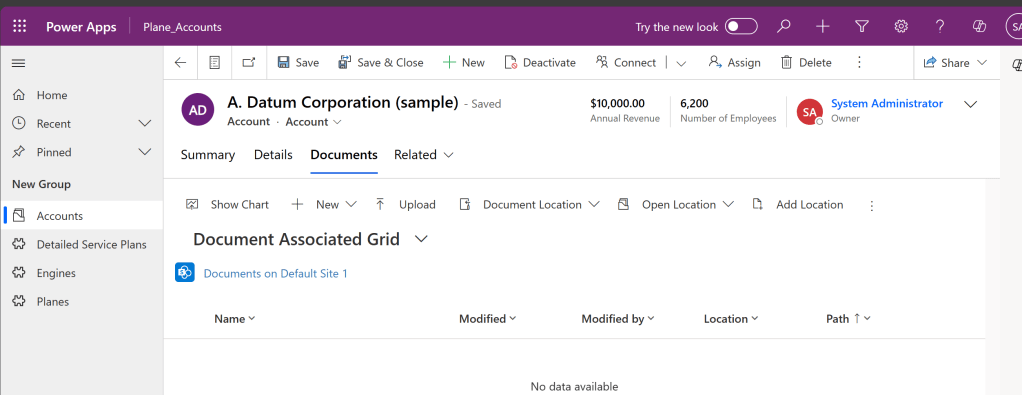
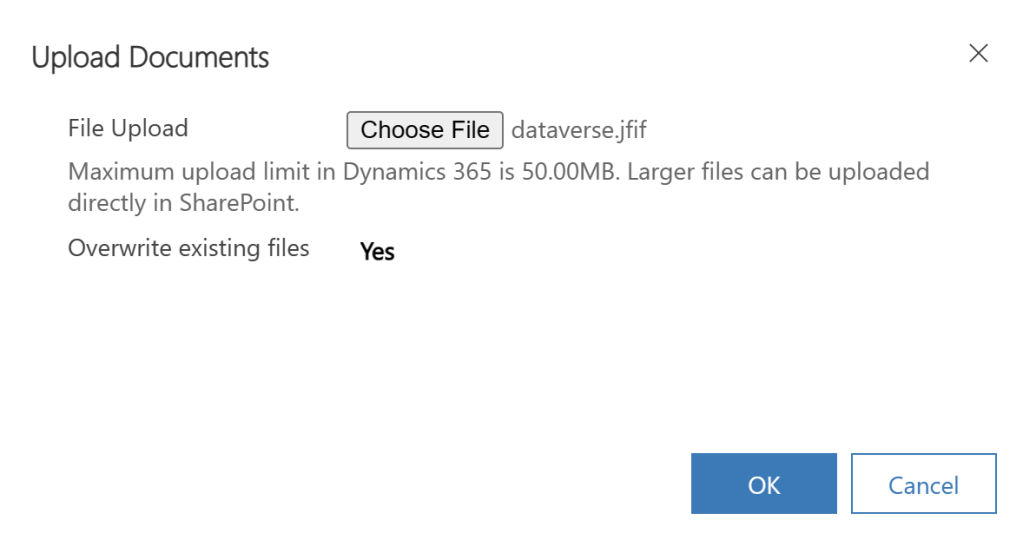
Now lets upload a document, click on chose file and find a file to test with, note the size limitation
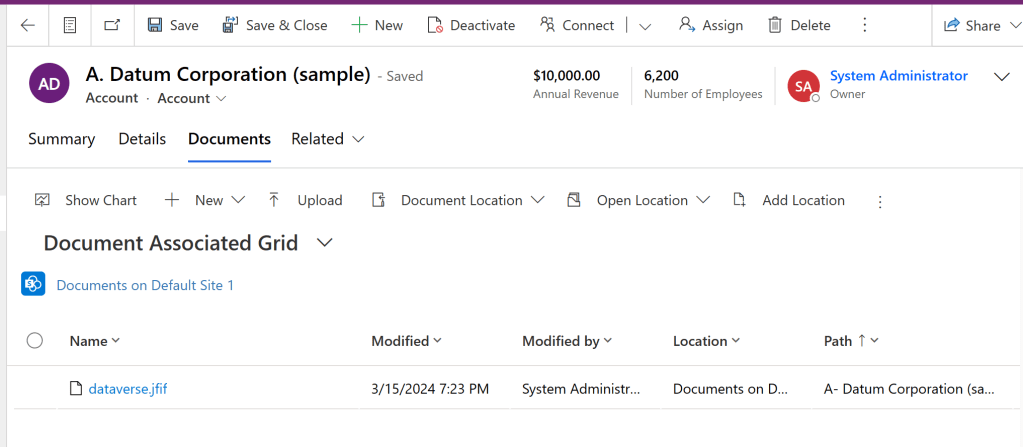
You can now see the file in your dataverse record
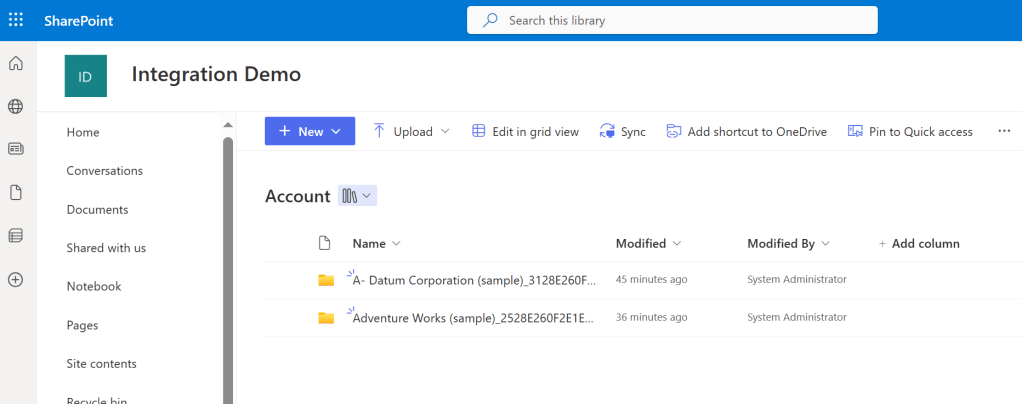
In SharePoint in the Library for this table you will see folders created for records with documents.
With the record folder you will find the uploaded document.
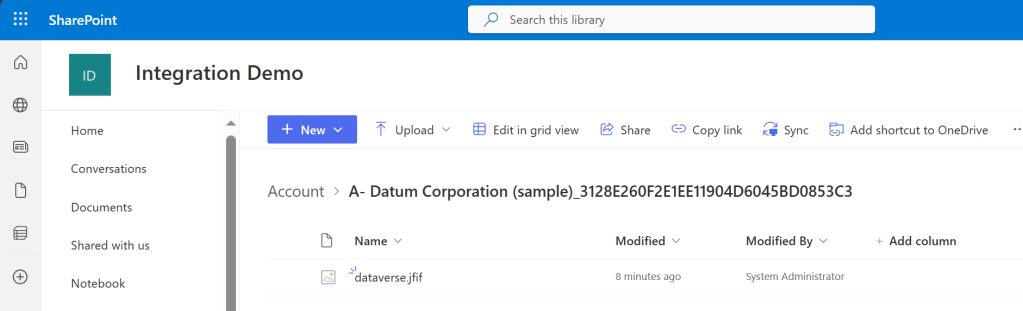
Documents can be uploaded via SharePoint or Dataverse once the record folder is created.
Each table can have its own documents as attachments , but think carefully in your architecture about where its easiest for users to find them in their tasks.
 Platform Guardian