
Did you know Power Platform DLP now has control on Power platform Data flows.
Lets create a DLP Policy to experiment.

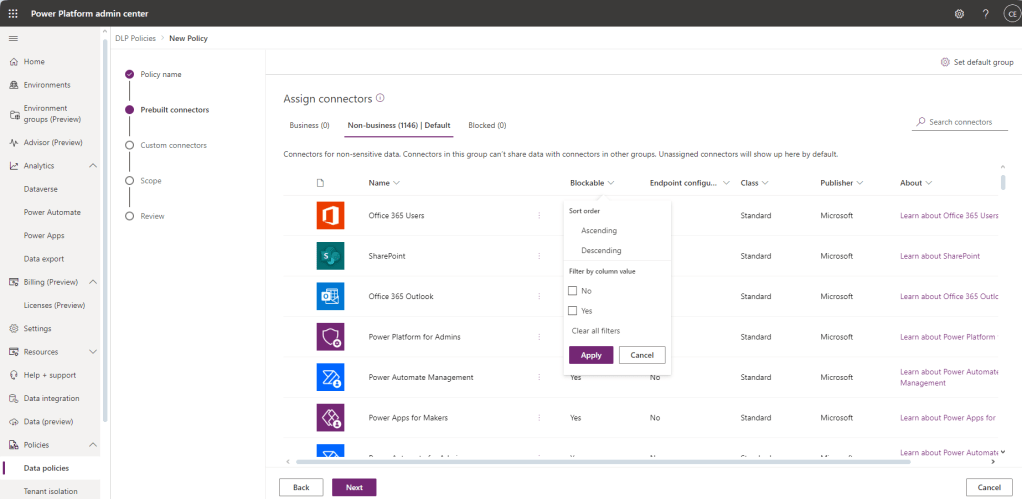
Filter the connectors so you only see all the ones that can be blocked
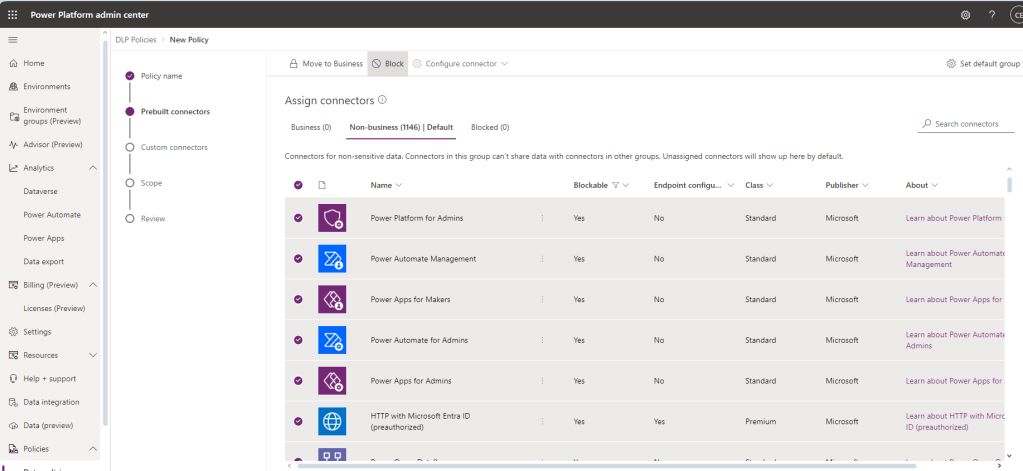
Then select all connectors and move them to Blocked
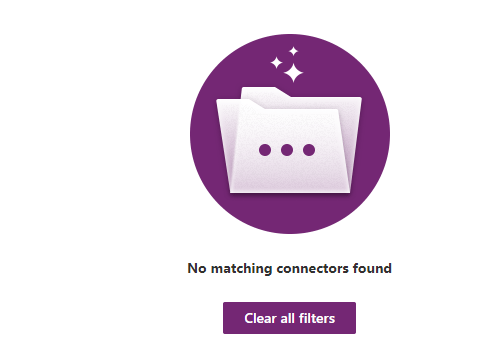
Click on clear all filters
Select any you want to move into the Business category , then click Move to Business at the top of the screen
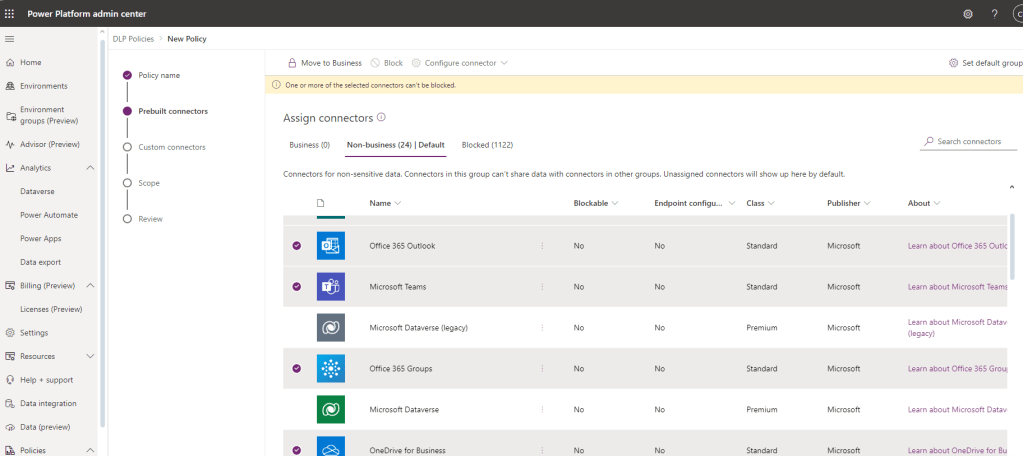
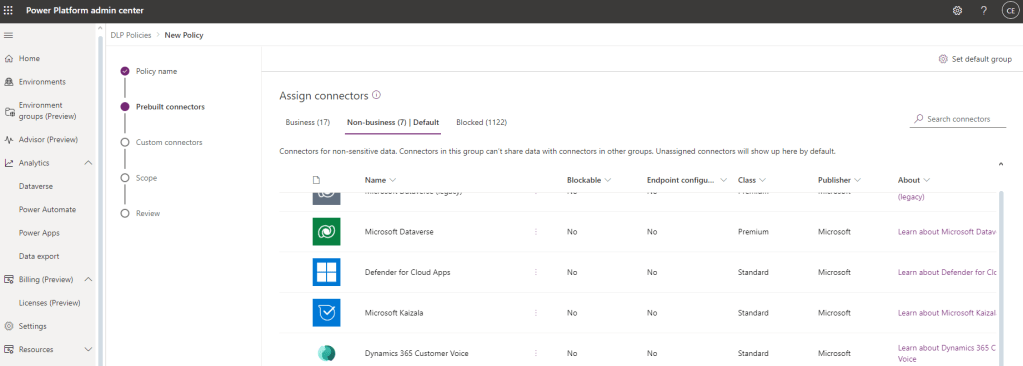
You could add a few more connectors from blocked to suit your needs but for the purpose of this demo , we will leave the connectors split like this.
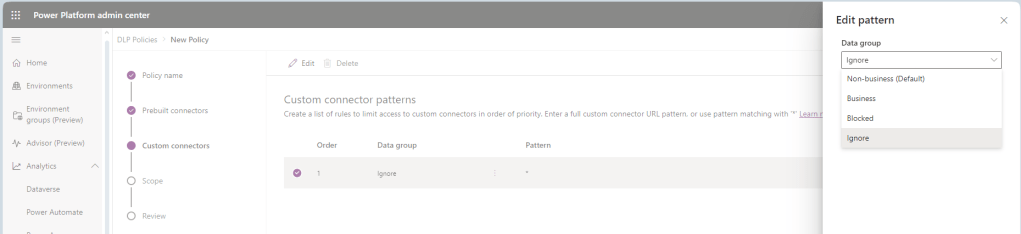
For the Custom Connector tab you can choose to ignore, add any custom connectors you want to use or simply block all custom connectors
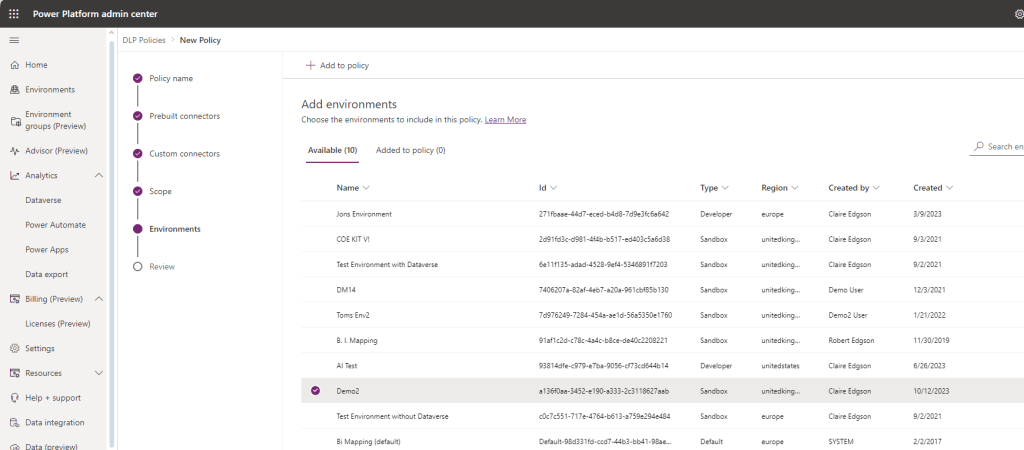
For the sake of the demo I only want to add one environment to my policy, but choose you own options here .

if you have chosen to select the environments its applied to then chose them in this next screen, remember to click add to policy at the top of the screen. (its not obvious).
Click review and then create on your policy.
Now open one of the environment effected by that policy and try to create a data flow.
In your environment if you cant see where data flows are hiding, click on more in the left menu bar,

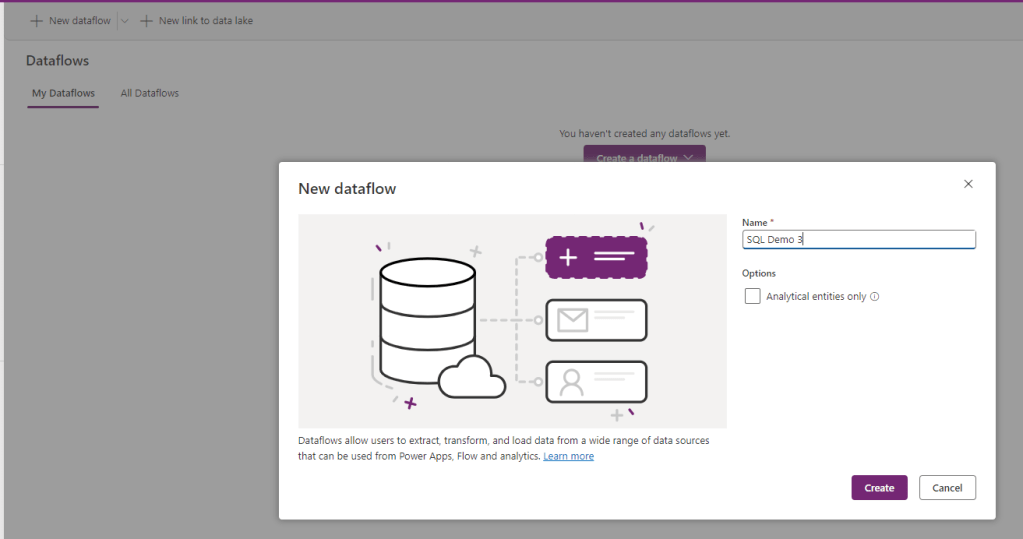
Create a dataflow, in my case I am going to test SQL being blocked.
Chose the data source you want to test
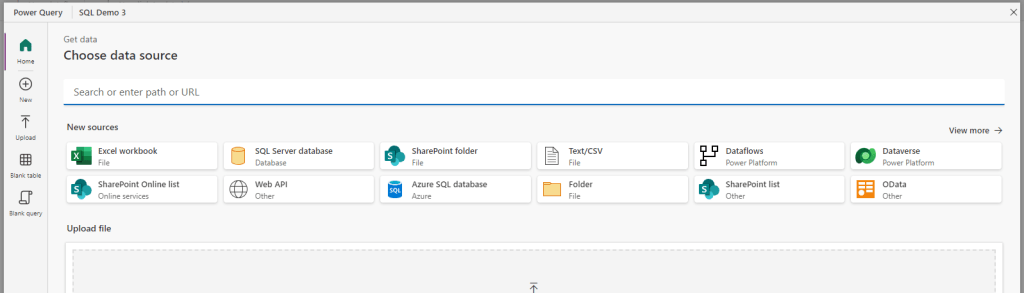
In my case I am going to try a SQL database connection
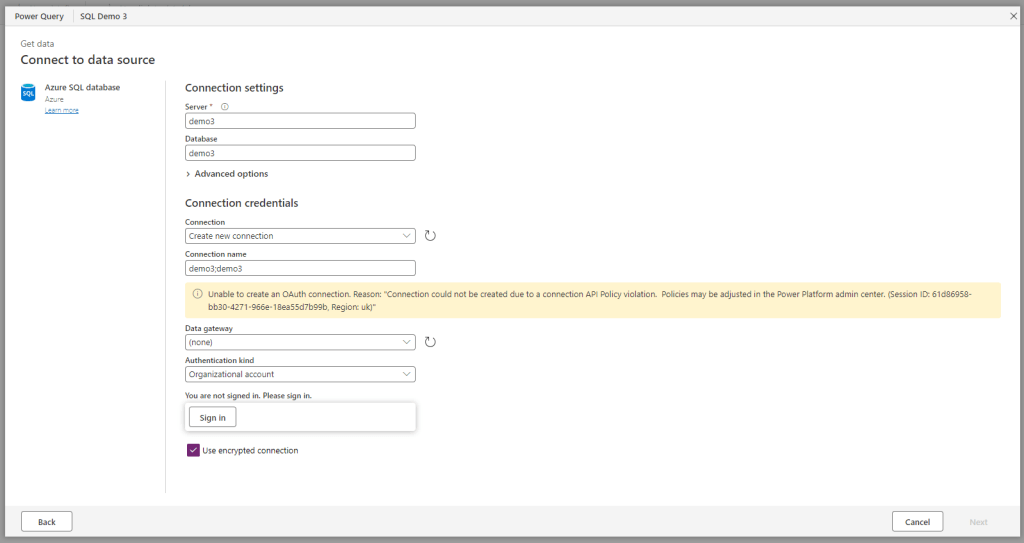
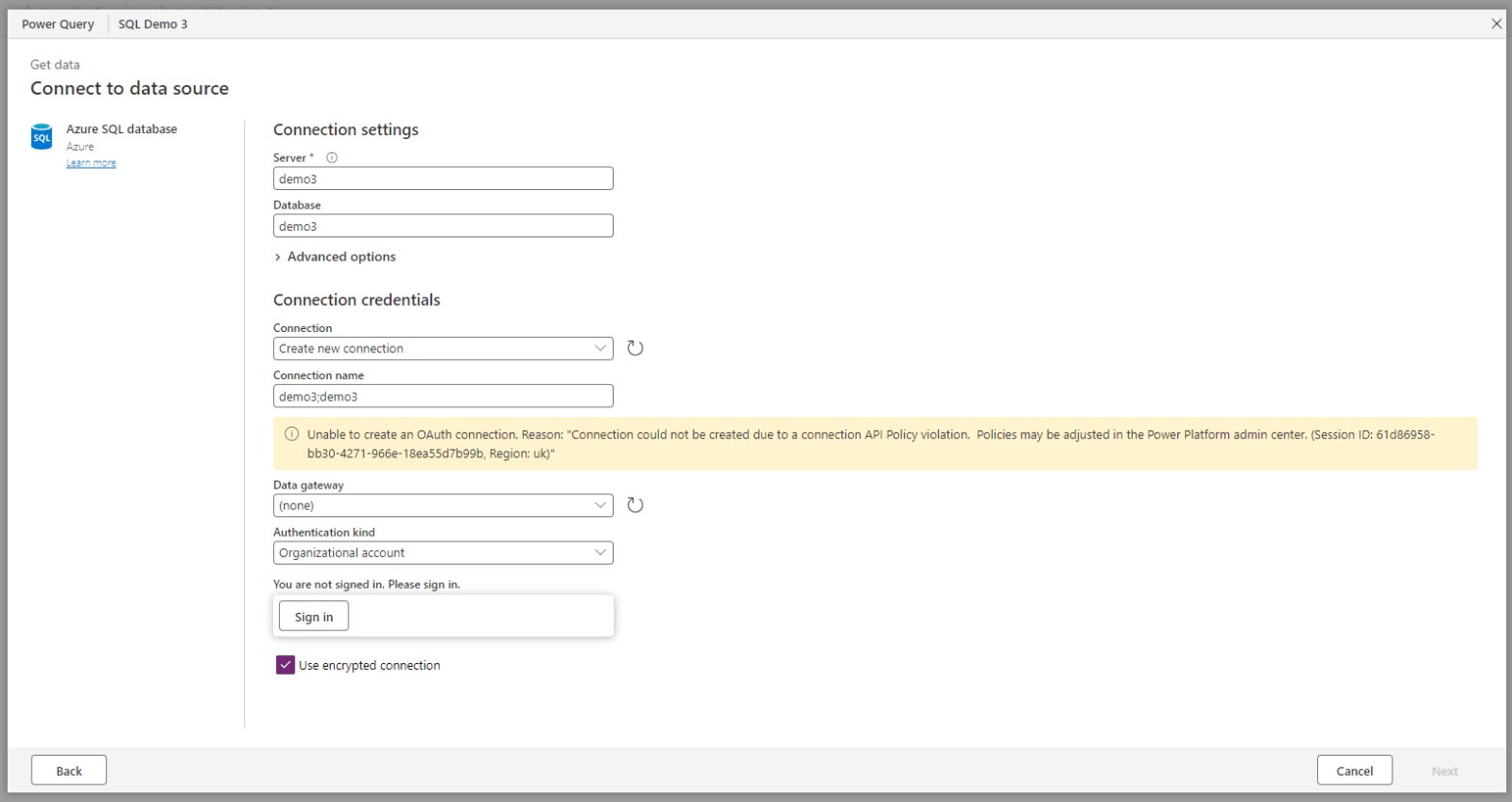
as soon as I choose Authenication kind , I get a Sign In box, if I click on sign in, then I get this Yellow banner with an error message, this policy is preventing me using SQL in this environment.
If I choose Basic authentication, I only get an error when I hit Next at the bottom of the page, but again it prevents me from making the connection .
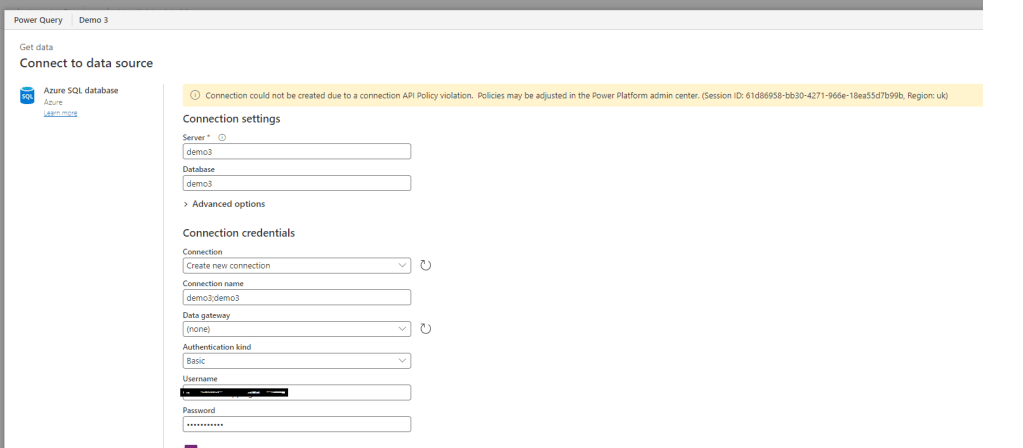
I haven’t tested every connector yet, but all the databases seem to behave as expected and abide by the DLP.
Try it in your tenant and let me know what doesn’t work.
 Platform Guardian
One thought on “Controlling Power Platform Data Flows with DLP”