
Update March 2024: The Link to Fabric can be done from the Tables view in Make.powerapps.com
Click on the Analyse drop down and Choose Link to Microsoft Fabric
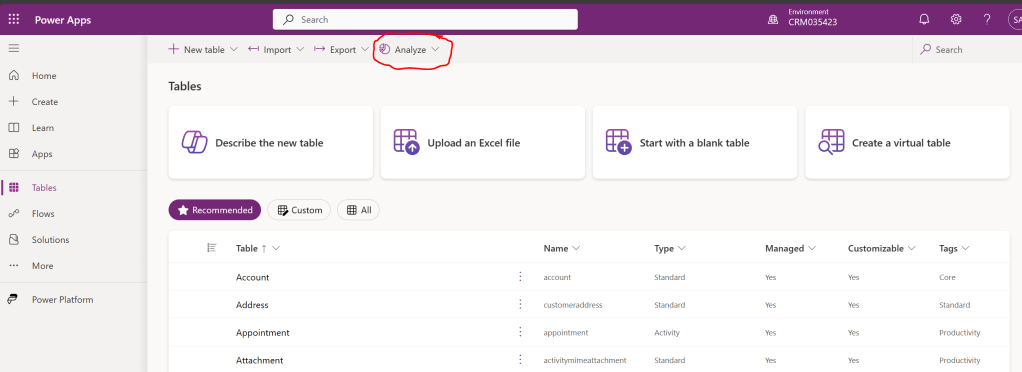
This should auto create the connection for you

Then we need to choose our workspace -(Note if it doesnt find your pre-made fabric workspace, your workspaces are in a different region to your environment )
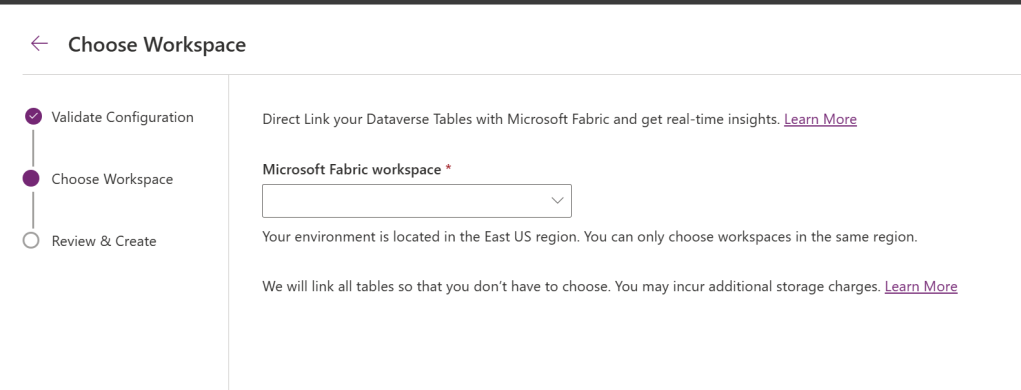
NOTE: It will now try to link all tables “We will link all tables so that you don’t have to choose. You may incur additional storage charges. Learn More” So once the link is made we will remove un-necessary tables via the azure synapse link.
Once you have a workspace, check the list below and click Create
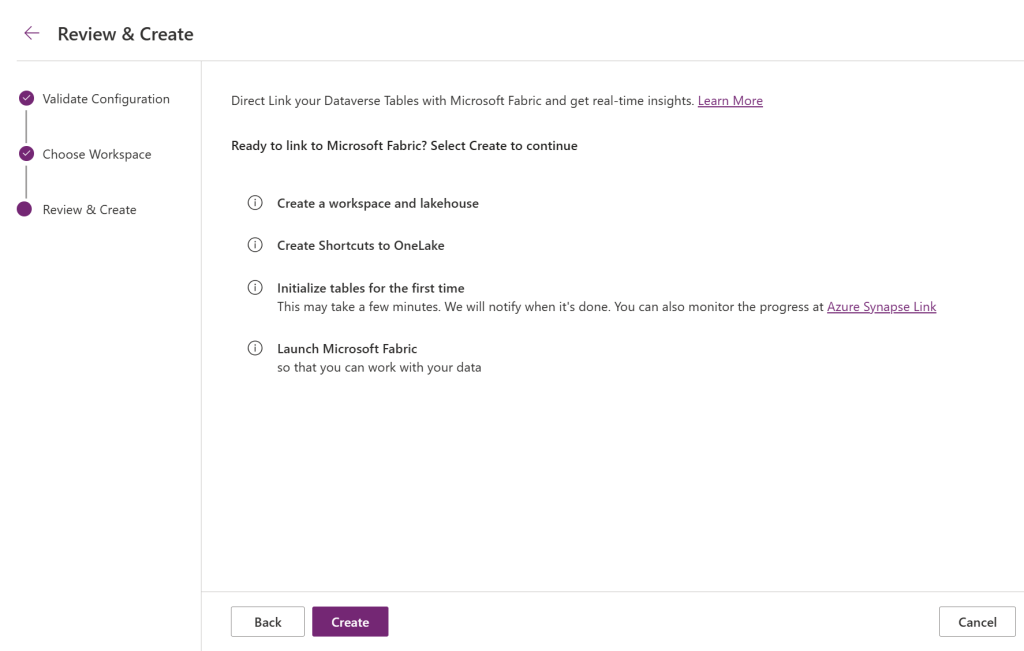
It can take a while to create the link….
Once link is complete the screen shuts. to check what is being linked go to Azure Synapse Link
If you dont have Azure Synapse link visible, then click on More on the left side menu and choose Discover all at the bottom of the menu. You will find Azure Synapse Link towards the bottom of the screen under data management.
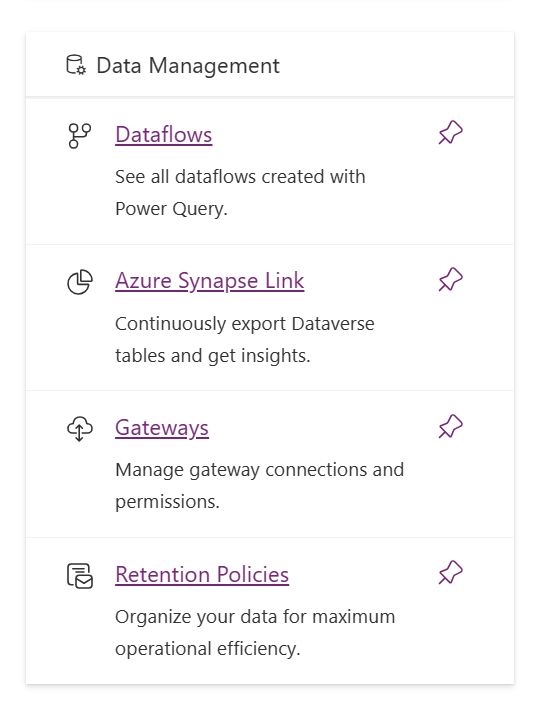
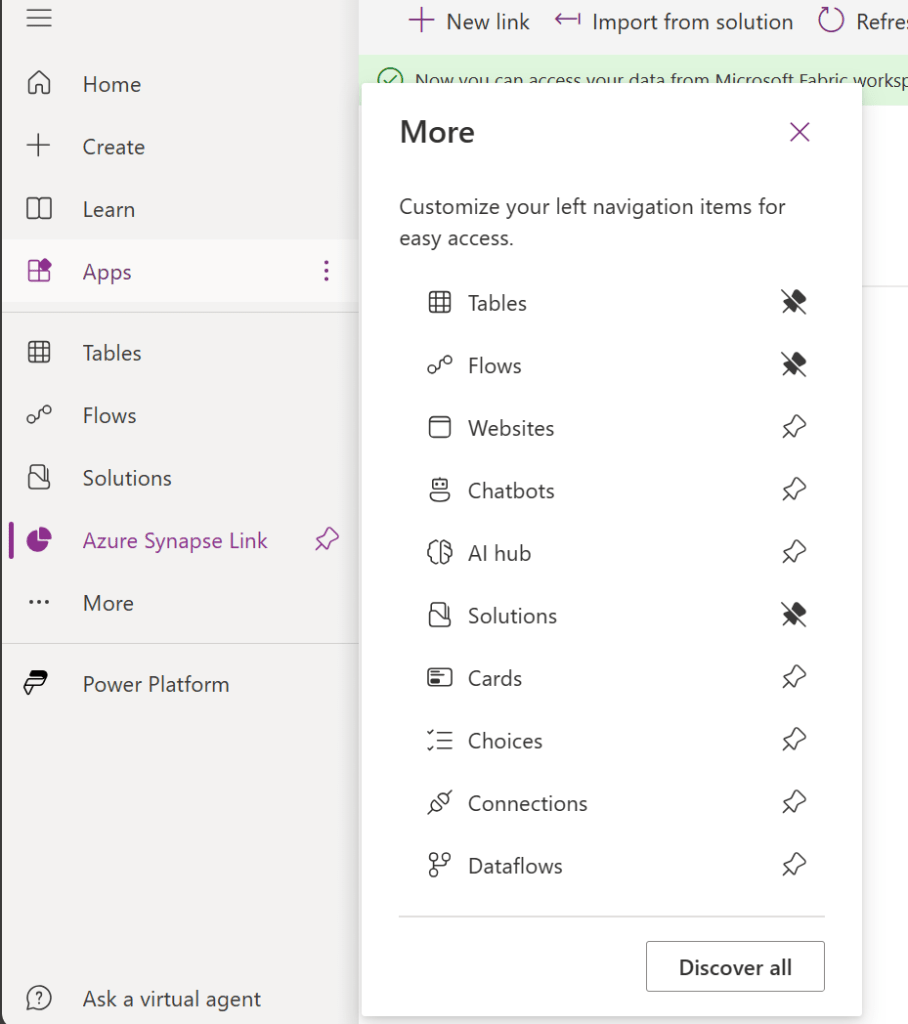
Now you have Azure Synapse Link click on Microsoft Onelake
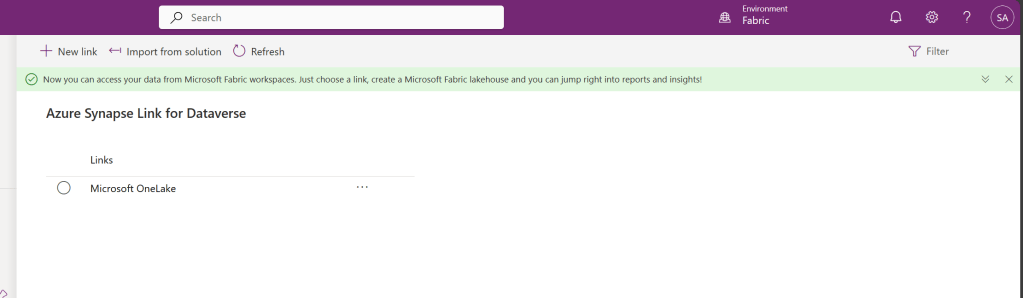
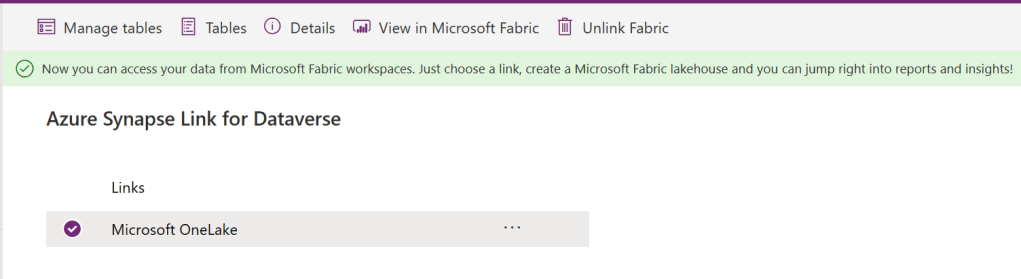
From here we can choose to Manage Tables
We now need to De-select any tables we do not want linked to fabric, because of data security or because of storage capacity.
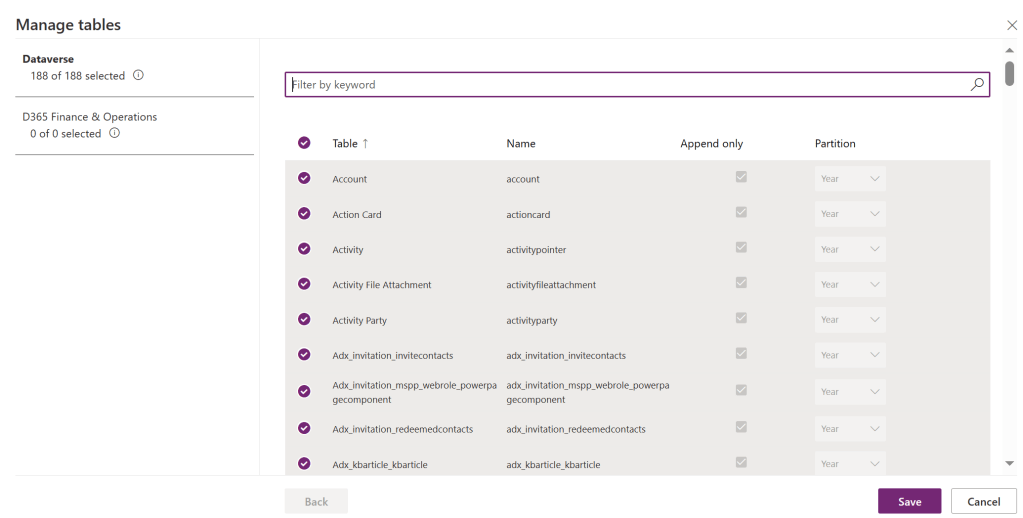
Once done, save and open Fabric to view your workspace. you will find a semantic model and a SQL analytics endpoint.
You can explore the semantic model to see your tables, they take sometime to appear.
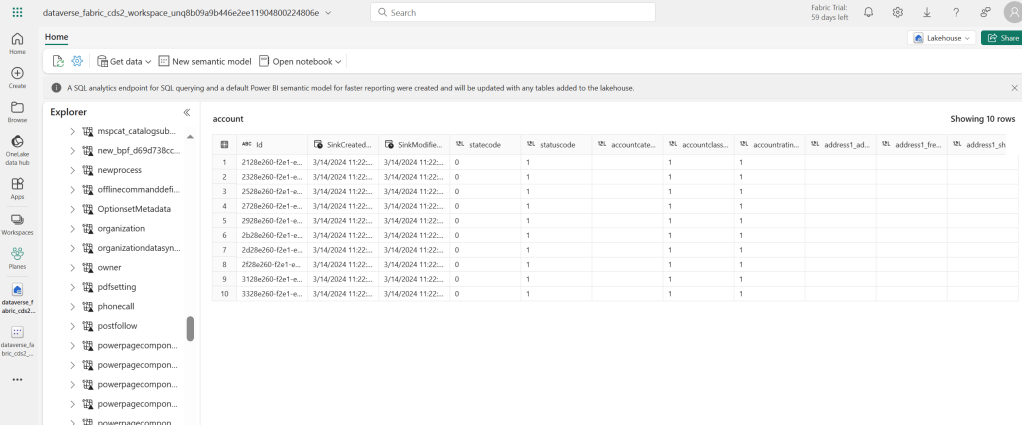
NOTE – the following section was the previous method for creating a fabric connection and may still be useful if the above fails.
So you want to use your Dataverse tables in Fabric, let’s look at the first step of creating that connection. [Note you will need Fabric enabled in your Tenant and at least a trial subscription to allow you to test the connection]
1. Let’s make sure the tables you want to use in Dataverse have tracking enabled.
Click on Properties
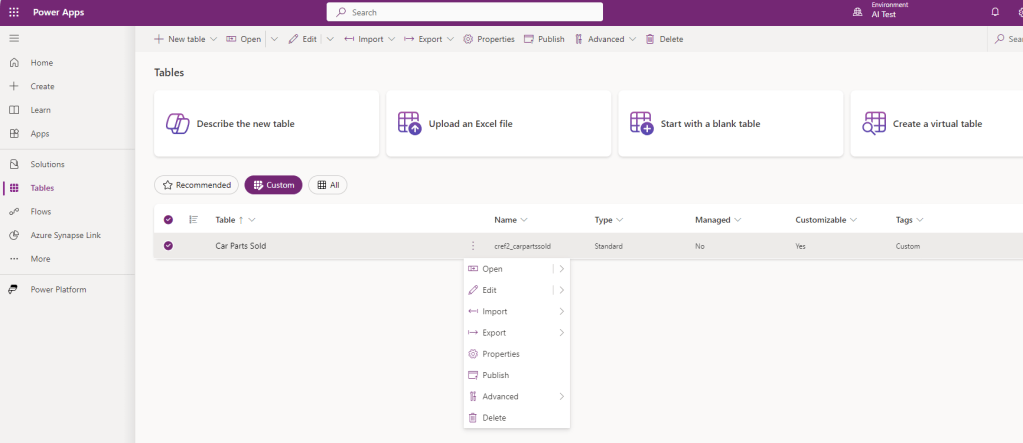
Click on Advanced Properties
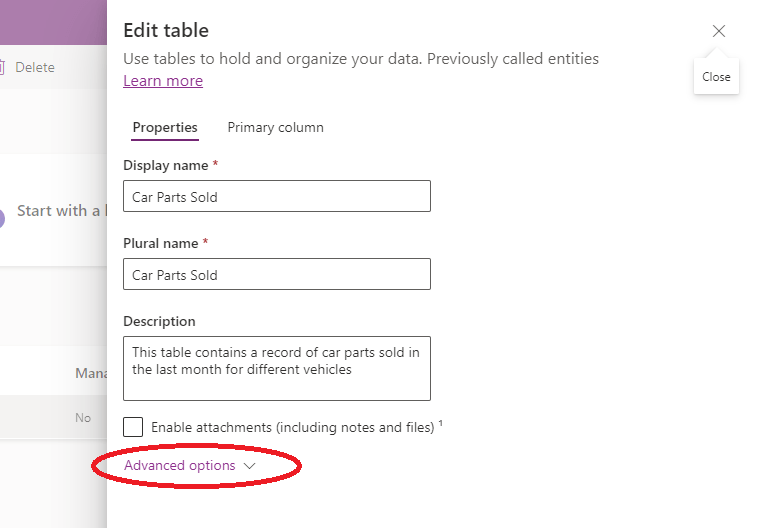
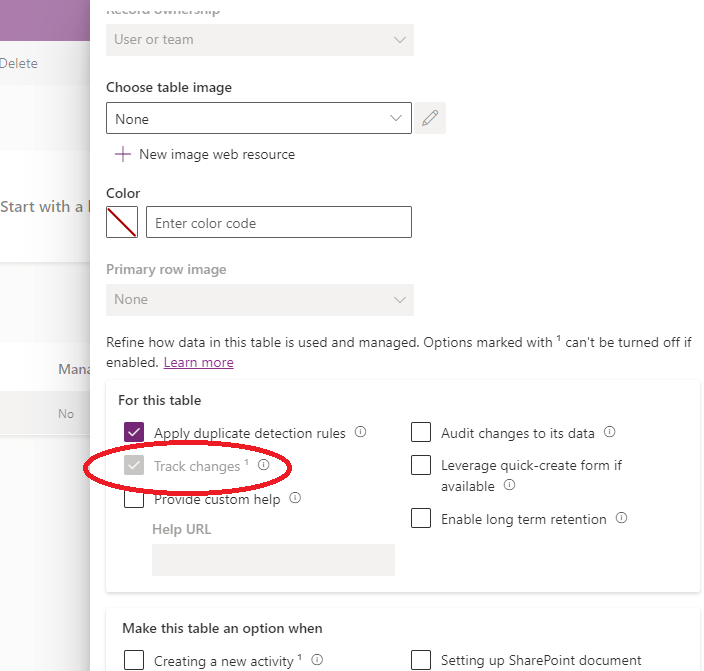
Then, scroll down to check if tracking is enabled. On most new custom tables, this is enabled by default as part of the Offline first functionality, but you need to check it is set on the tables you want to link to Fabric
Lastly, take note of your Environment URL . We will need that to make the connection.
2. Now let’s create the Fabric connection; Open Fabric and either create a specific workspace or choose one to use. Click on the cog top right to get settings and choose Manage Connections and Gateways
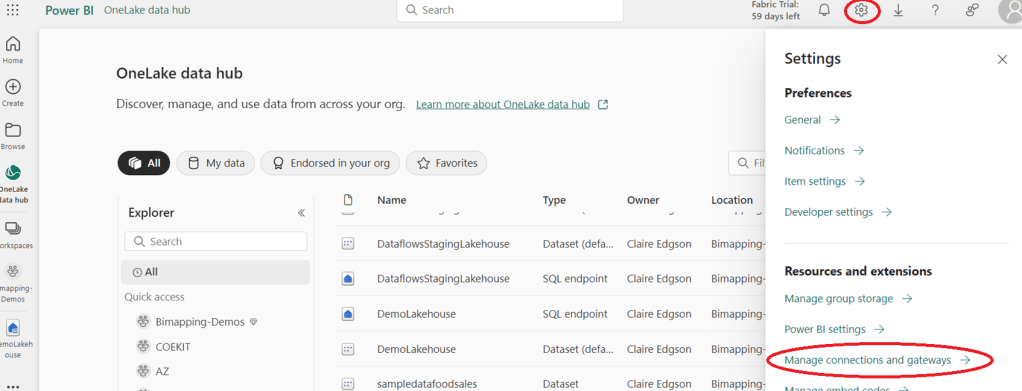
Choose Cloud connection on the right
The key things to note are: 1. We don’t use the HTTPS:// at the start of the URL & 2. The Connection name has to be the URL as well as the environment domain field. See below. This catches most people out.
Authentication can be OAuth 2 or a service principle. [Tip: click on edit credentials to confirm the credentials you want to connect with ]
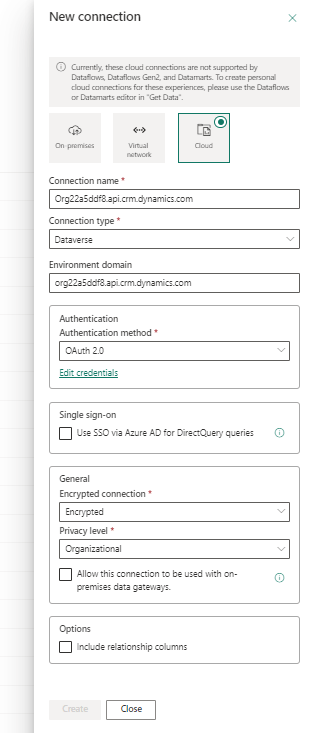
For most uses, you will probably want SSO enabled if you are planning to connect to the data as a human account, not a service principle.
The encryption connection should be set to encrypted for privacy level, it will depend on the use case.
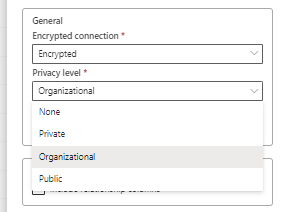
If you are now wondering why you do not have a Create button, then go up to the Authentication box and click on Edit Credentials to confirm the account to be used.
Click Create and see your connection appear in the list. [Note this is the same list that appears in the Power Platform admin centre in the Data (Preview) window.

Once this connection is in place, ,you can link any table (that has tracking allowed) to Fabric, without doing this step again, as you have connected your environment to Fabric
That’s all well and good, but what does it do..
3. Go Back to the Power Platfrom table page and look for Azure Synapse link in your left menu.
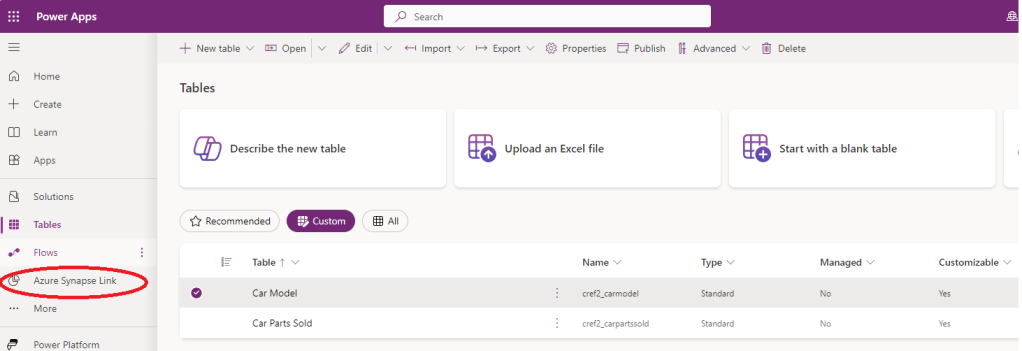
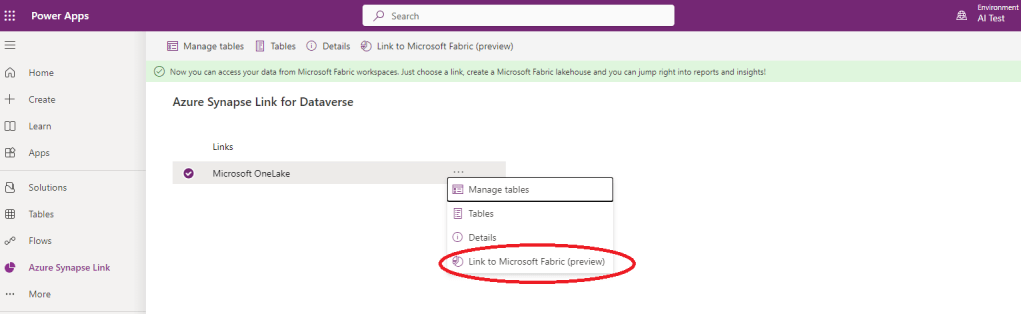
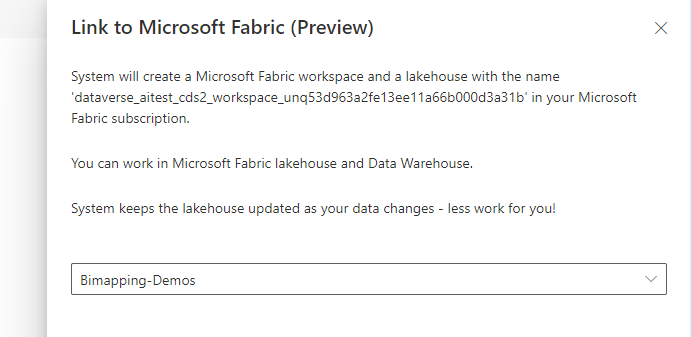
This will create a dataset (lakehouse)and a SQL endpoint to this data link..

[Note. at the time of writing, if i leave this lower box empty, it will create a new workspace, a lakehouse and an SQL endpoint. However, I may want it to appear in a workspace, I already have, so I can select that workspace in this un-named drop down.]
Now you may be thinking, That didn’t select any tables to link, and you are right.
Click on the Microsoft Onelake under Azure Synapse link , to see which tables are linked already or click on Manage Tables to add more.
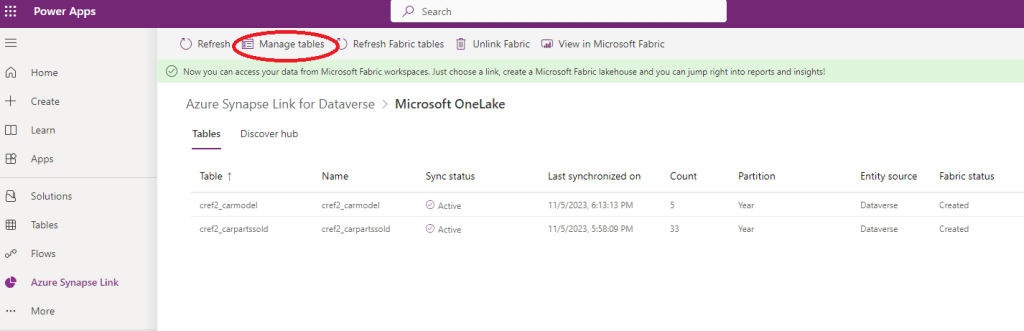
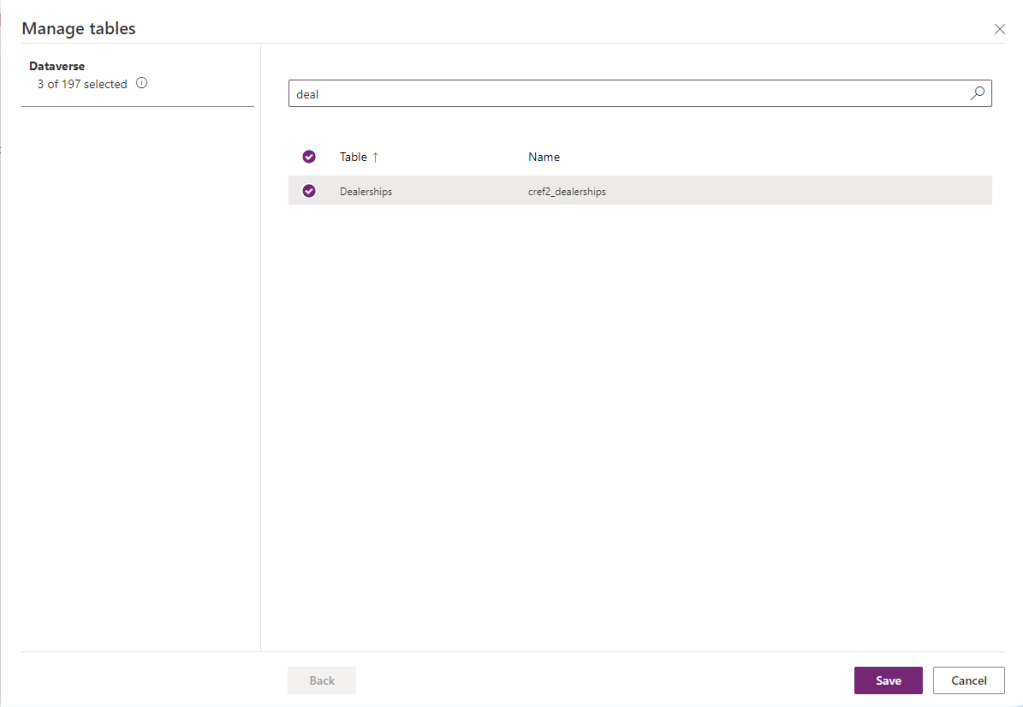
You can, of course, create a fabric link from the tables directly, by clicking export – link to Microsoft Fabric, this will also add your table to the same dataset.
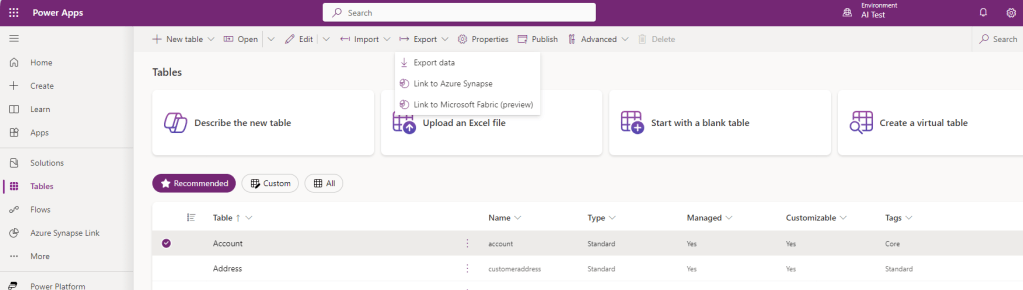
Note that if you do this before going to the Azure Synapse Link and choosing a workspace, it will make a new workspace for you, and there is not yet an option to pick the workspace you want to use.
Hope that is useful. Next Fabric post we will look at how to use that data in Fabric.
 Platform Guardian